Help / Getting started

Translate your first screen

Updated 2026-10-30 · 2 min read

From an English frame to translated text in a few minutes.

This walks through the whole loop once: link a screen, translate it, check it.

Select a frame in Figma. The bar at the bottom of the plugin shows how many text layers it has and how many are already linked. Choose Auto-link to link layers whose text matches existing keys, or Create keys to make keys for the rest. Key names are suggested from the frame and the text. See Create keys and auto-link.
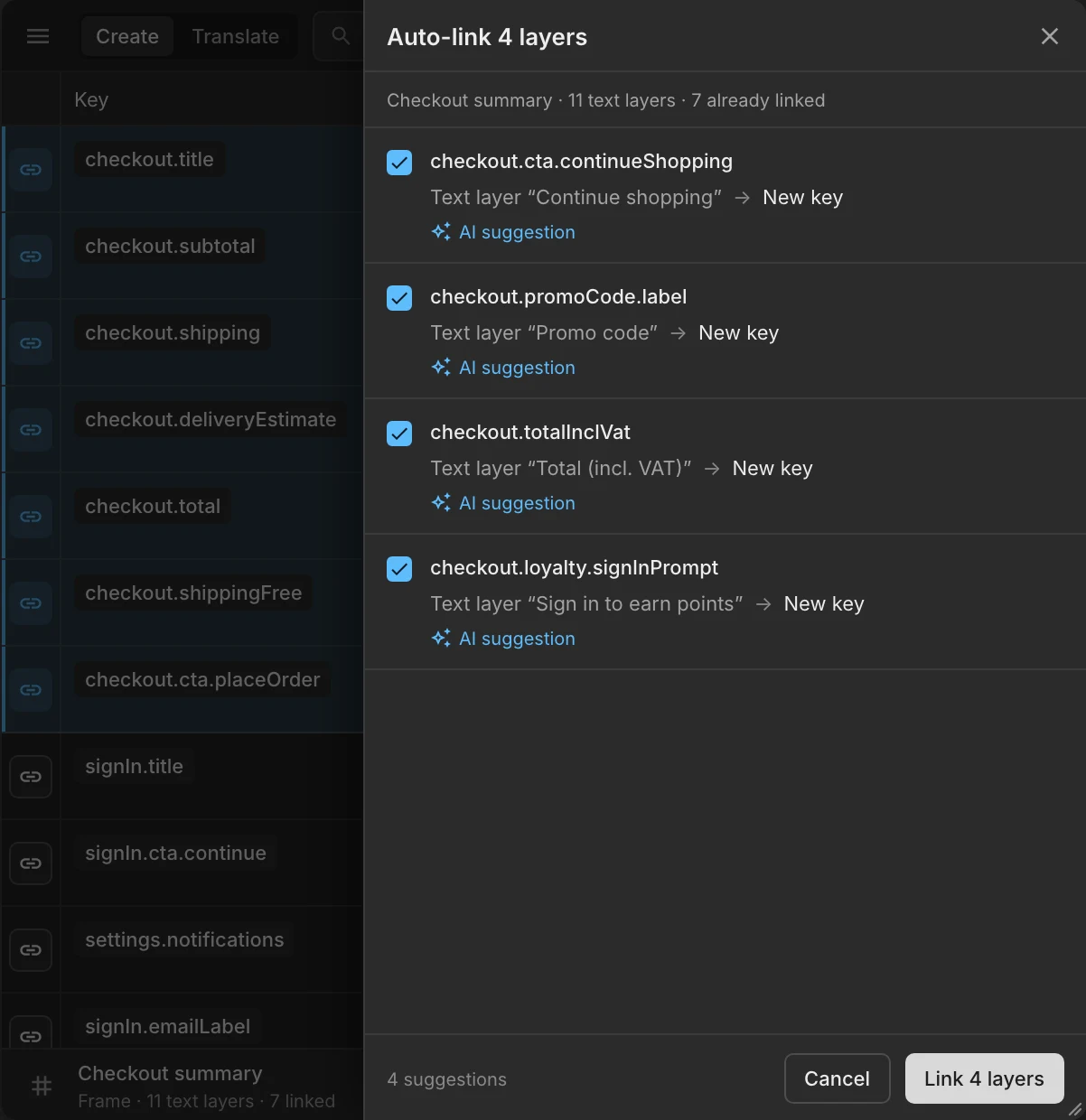
The Auto-link sheet for the frame Checkout summary, 11 text layers and 7 already linked. Four AI suggestions, each ticked: checkout.cta.continueShopping for the layer Continue shopping, checkout.promoCode.label for Promo code, checkout.totalInclVat for Total (incl. VAT) and checkout.loyalty.signInPrompt for Sign in to earn points, each a new key. The button says Link 4 layers
Auto-link suggests a key for each text layer in the frame. You approve, and the layers are linked.

2. Translate

Open the ✦ menu › Translate missing…, pick the languages and start. The translation runs in the background; the status bar shows progress. The AI uses the frame, the text around each key, your glossary and your style guide.
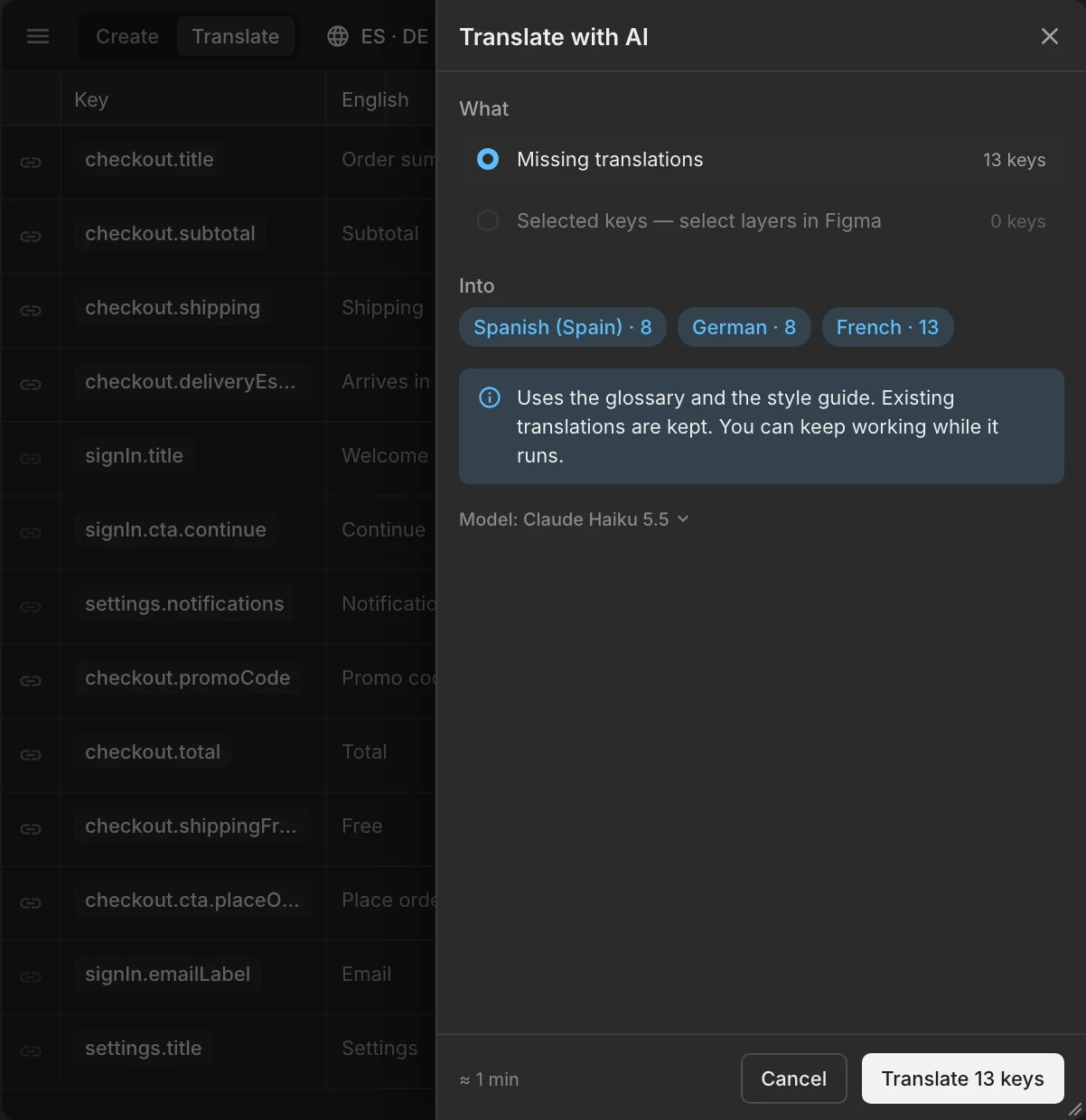
The Translate with AI sheet: Missing translations, 13 keys, into Spanish (8), German (8) and French (13). A note says it uses the glossary and the style guide, keeps existing translations and runs while you keep working. The button says Translate 13 keys
Translate missing: pick the languages and start. It runs in the background.

3. Check on the canvas

With the frame selected, choose Preview translation and pick a language. The frame shows the translated text, and any layer where the text is too long is counted so you can step through them. Choose Back to source when you are done.
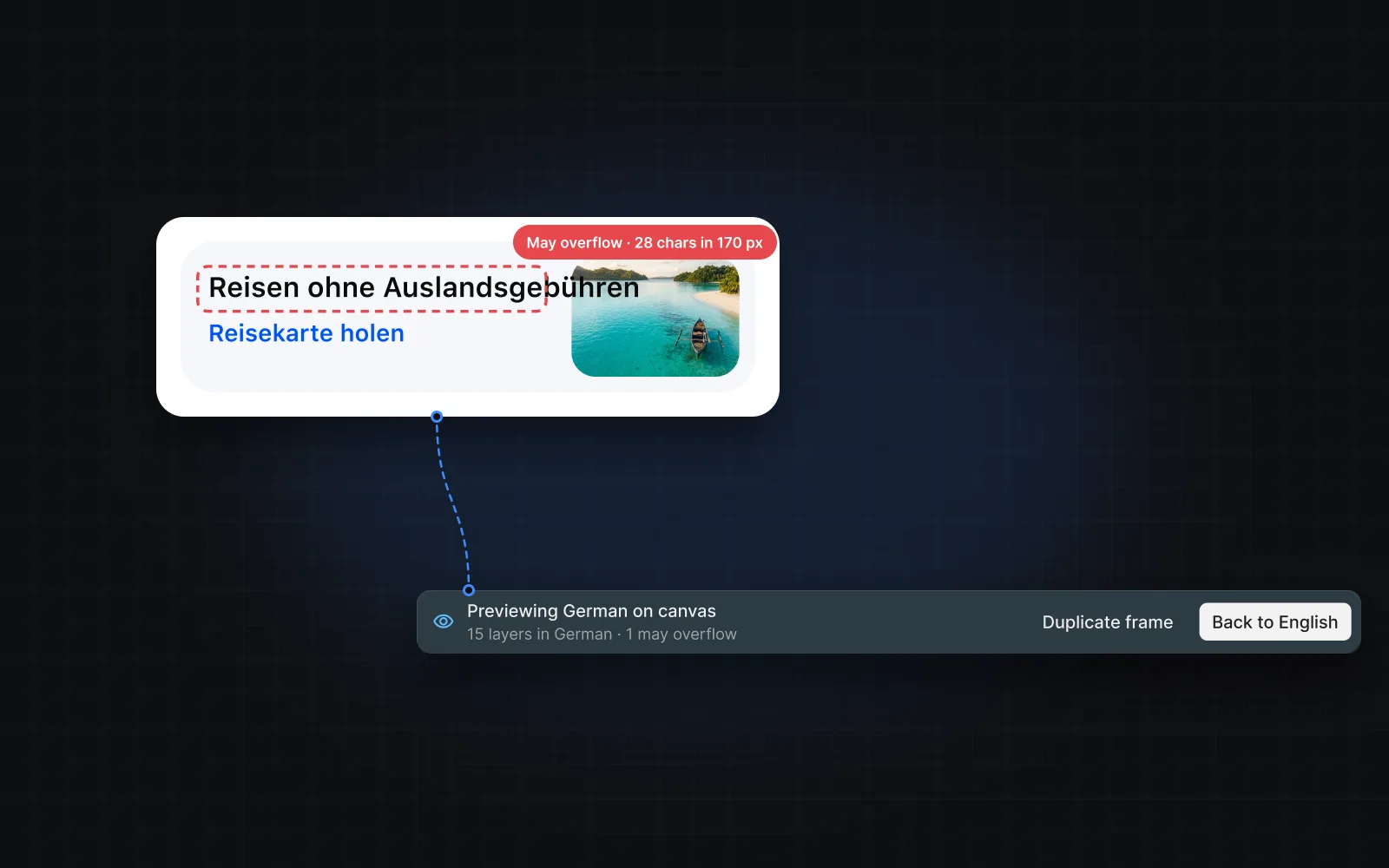
A promo card previewed in German on the canvas. The headline is marked May overflow, 28 characters in 170 px, and the preview bar says 15 layers in German, 1 may overflow, with Duplicate frame and Back to English
The preview marks text that may not fit, so you can fix it before handoff.

4. Review

New translations are AI drafts until someone accepts them. Open ✦ › Review AI translations to go through them. See Review AI drafts.
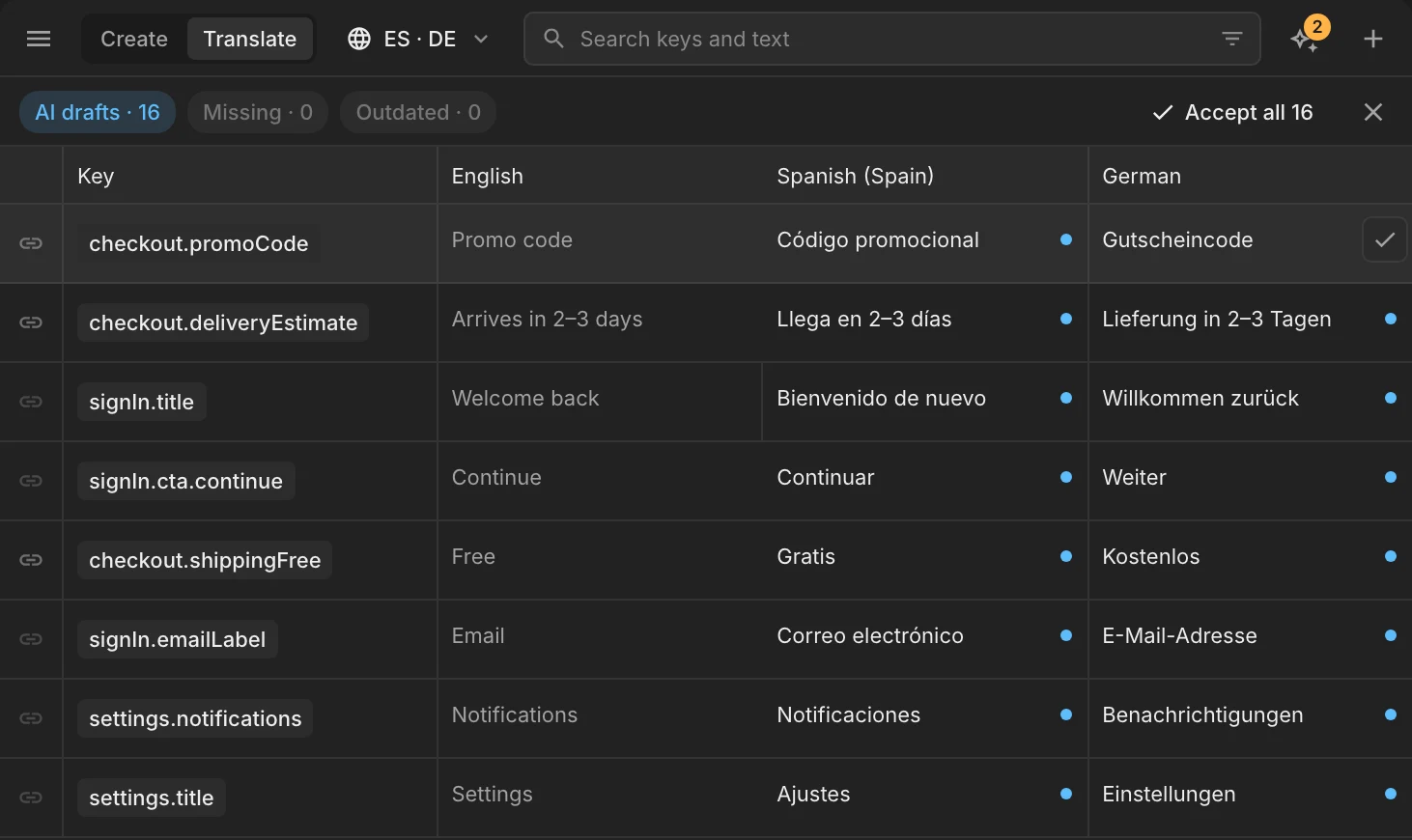
Review mode in the Translate tab: chips AI drafts 16, Missing 0 and Outdated 0, and Accept all 16. Spanish and German cells with a blue dot are AI drafts, and the first one shows a ✓ button
Accept one draft with ✓, or accept them all at once. Undo is offered right after.
Was this helpful?