Install the plugin and sign in
Updated 2026-10-30 · 1 min read
Get the Mondoword plugin during the beta, open it in Figma and sign in with Google.
Mondoword runs as a Figma plugin. You sign in once with your Google account; the plugin and the website share that account.
Get the plugin
During the beta the plugin is not listed in the Figma Community yet. To get it:
- Sign up on the website. It takes 30 seconds.
- We let new people in from the list every week. When your access is approved, you get an email with an invite link and the install steps.
- Follow the link to add the plugin to Figma (desktop app or browser), then sign in as below.
If someone already shared the plugin with you, you can open it and sign in right away: signing in with an account that has no access yet also puts you on the waitlist.
Sign in
- In Figma, open the Mondoword plugin.
- Choose Sign in with Google. Your browser opens the sign-in page.
- Finish signing in in the browser, then go back to Figma. The plugin signs you in by itself.
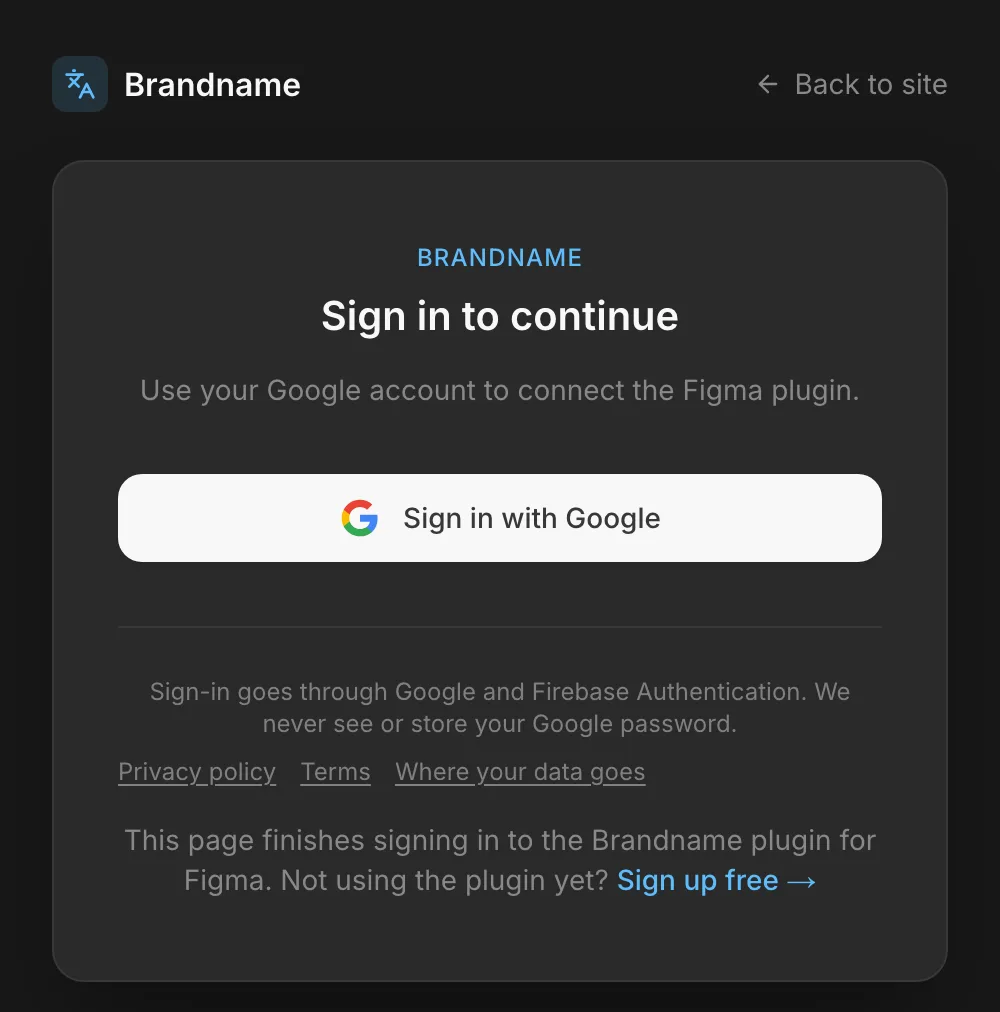
If the browser tab was closed or you switched accounts, choose Open the browser again in the plugin and finish there.
During the beta
Mondoword is in a closed beta. If your account does not have access yet, the plugin shows Beta Access Required with the email you signed in with, and that email joins the waitlist. We email you when your access is approved. If someone on your team invited you, ask them to add that address.
Sign out
Open the menu (top left), click your email at the bottom of the menu, and choose Log out.