Connect an AI agent (MCP)
Updated 2026-10-30 · 1 min read
Use Mondoword from Claude, ChatGPT, Cursor and other MCP clients.
Mondoword has an MCP connector: AI assistants and coding agents can search your keys, create keys, link them to Figma layers and translate them — as you, within the rights you give them.
1. Turn on access for a project
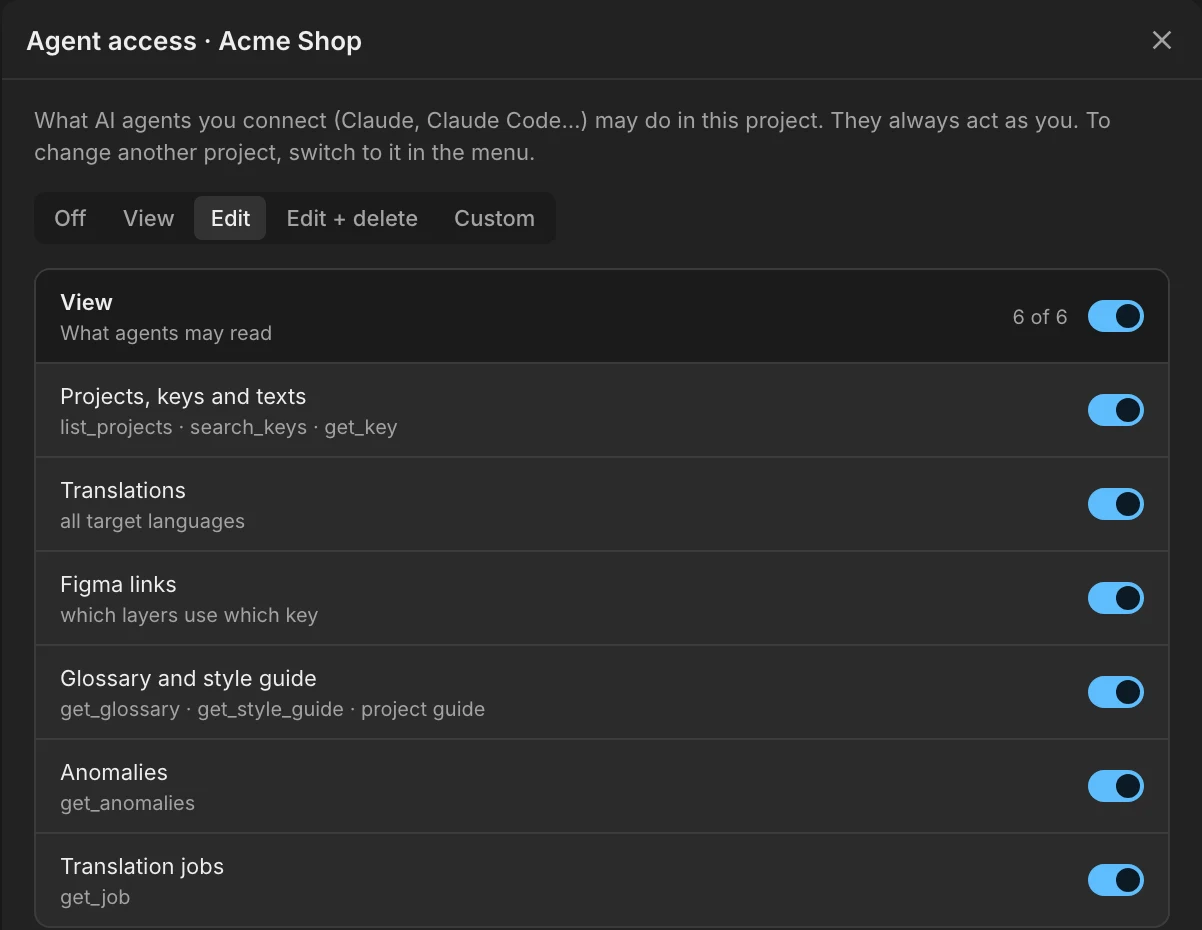
In the plugin, open the menu › Agent access. Pick a preset (View, Edit or Edit & delete) or choose capabilities one by one. Access is per project. Copy the MCP URL from the same panel.
2. Add the connector
- Claude Code:
claude mcp add --transport http mondoword <MCP URL> - Claude (claude.ai): Settings › Connectors › Add custom connector, and paste the MCP URL. On team plans an owner may need to allow custom connectors.
- Cursor and other clients: add an MCP server of type HTTP with the MCP URL.
3. Sign in
The first time the agent connects, a browser window asks you to sign in with the same Google account you use in the plugin. There are no API keys to copy.
Then ask in plain words, for example:
“In my Checkout project, find keys without a German translation and translate them.”
Was this helpful?